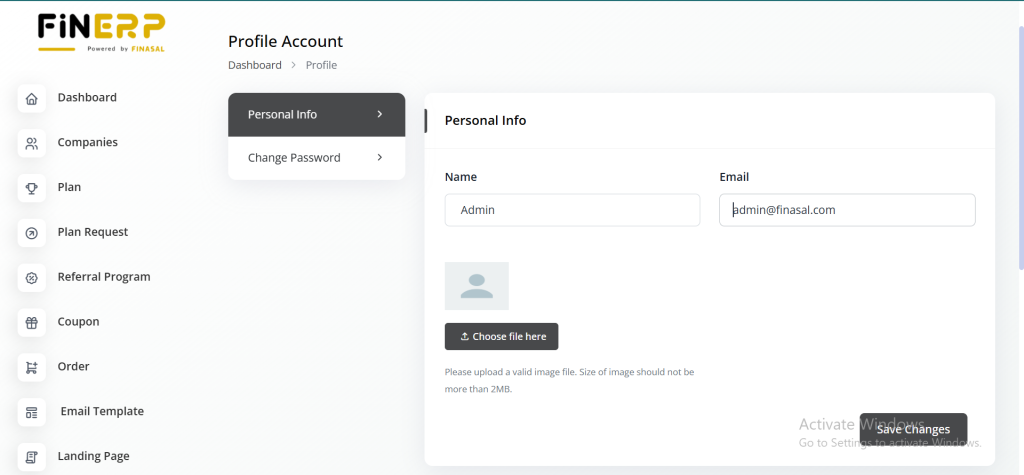
The Admin login process in Fin ERP enables authorized personnel to securely access the platform and perform designated administrative tasks. It provides a secure gateway for managing modules, users, and operational data. Through this process, admins can monitor activities, handle configurations, and ensure smooth platform operations. The login system incorporates strong authentication to protect data integrity and prevent unauthorized access. Admins are granted permissions based on their assigned roles, ensuring controlled and efficient management.
Access the Login Page
To start the login process, open your preferred web browser and go to the official Fin ERP login page. This page provides a secure gateway for administrators to access the system. Make sure your internet connection is active and you’re using a supported browser for the best experience. The login page is designed with built-in security to protect credentials and sensitive data. Once the page is fully loaded, you can safely proceed with entering your login information.
Key Points:
Open any standard browser such as Google Chrome, Microsoft Edge, or Firefox
Navigate to the official Fin ERP login URL
Ensure a stable internet connection before proceeding
The page includes security features to protect user data
Wait for the page to load completely before entering credentials
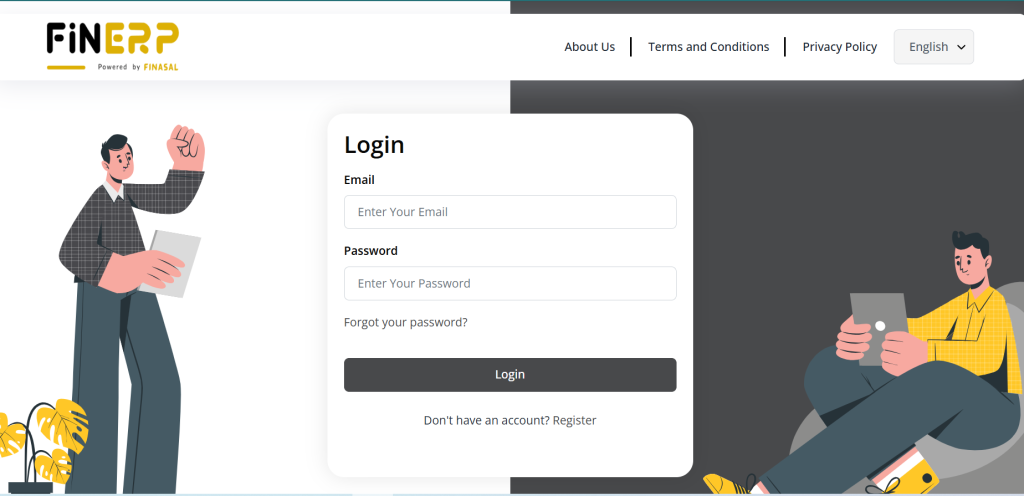
Enter Credentials
On the Fin ERP login page, enter your registered email address and password linked to your admin account. These credentials verify your identity and allow secure access to the platform. Make sure all details are entered correctly to avoid login errors.
Key Points:
Enter your registered email and password
Ensure credentials are typed correctly
Passwords are case-sensitive
Provides secure access to the Fin ERP system
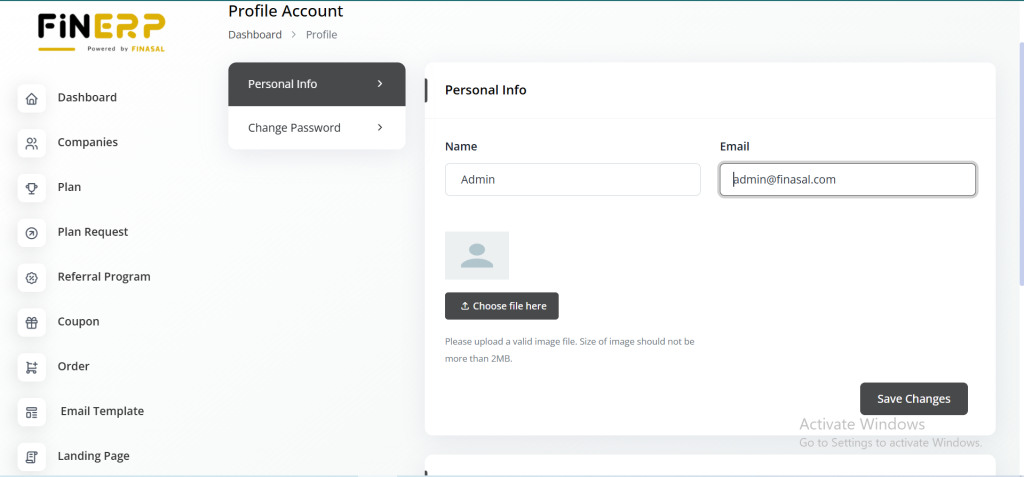
Login
After entering your credentials, click the “Login” button to begin the authentication process. The system will verify your email and password before granting access. Once validated, you’ll be redirected to your Fin ERP Admin Dashboard.
Key Points:
Click the “Login” button after entering credentials
System verifies your authentication details
Grants access upon successful verification
Redirects to the Fin ERP Admin Dashboard
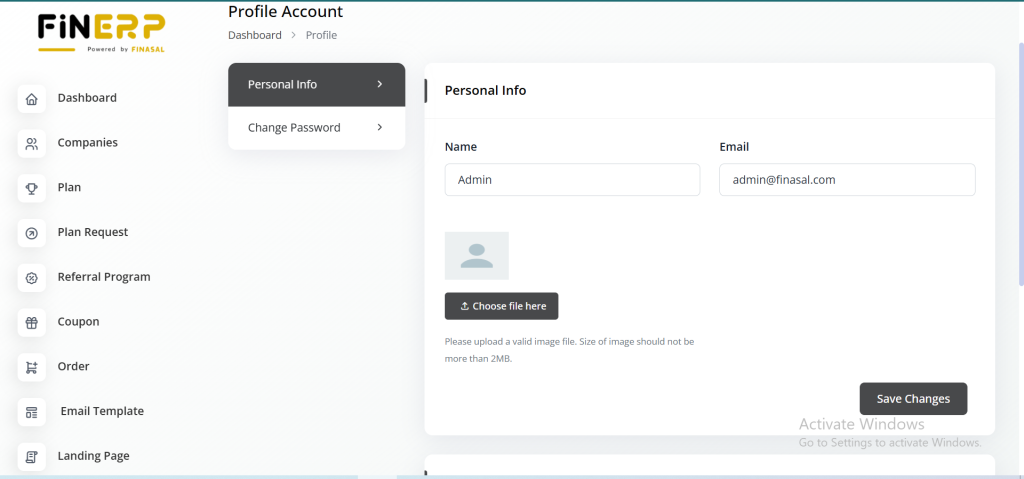
Dashboard Access
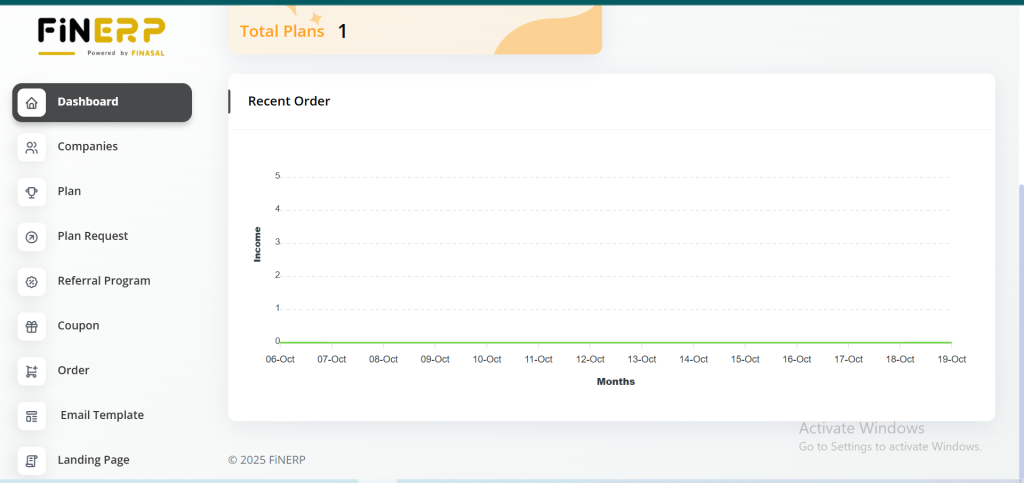
Once your credentials are successfully verified, you will be redirected to the Fin ERP Admin Dashboard. This dashboard provides access to various administrative tools and platform settings. From here, you can manage users, modules, and configurations efficiently.
Key Points:
Access the Fin ERP Admin Dashboard after login
View key system modules and tools
Manage users, settings, and operations
Begin performing administrative tasks
Language Preferences
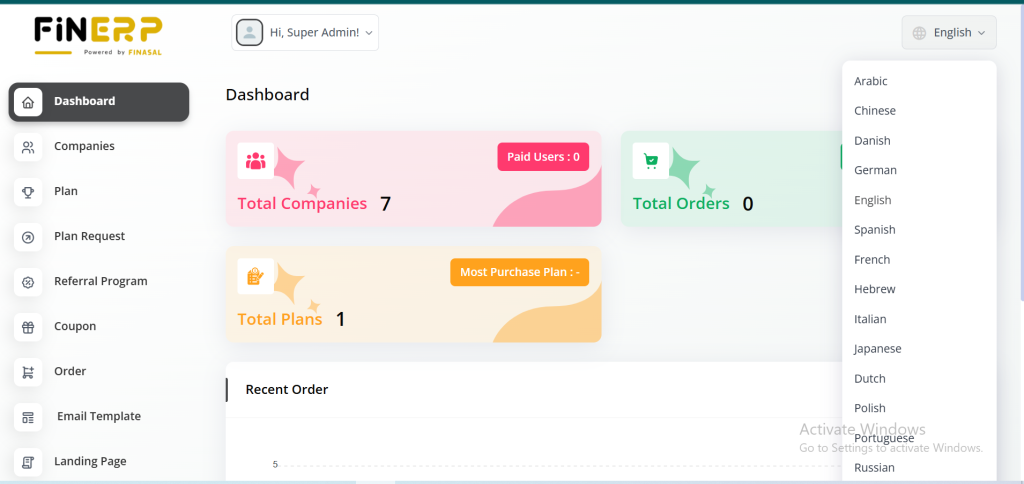
The “EN” button in Fin ERP allows administrators to select their preferred language for the platform. It also enables them to activate or deactivate specific languages as needed. This feature ensures a multilingual and user-friendly experience for global accessibility.
Key Points:
Use the “EN” button to choose preferred languages
Enable or disable languages as required
Supports multilingual accessibility
Enhances user convenience and customization
Admin Functions
Use the Fin ERP Admin Dashboard to access and manage features assigned to your admin role. These may include product management, order processing, and customer interactions. By following these steps, you can log in as an admin and efficiently manage key operations within the Fin ERP platform.
Key Points:
Access all modules assigned to your admin role
Manage products, orders, and customer activities
Monitor and perform daily administrative tasks
Ensure smooth and efficient platform operations